Getting Started
Learn the basics of PassBangla and set up your account
Create Your Account
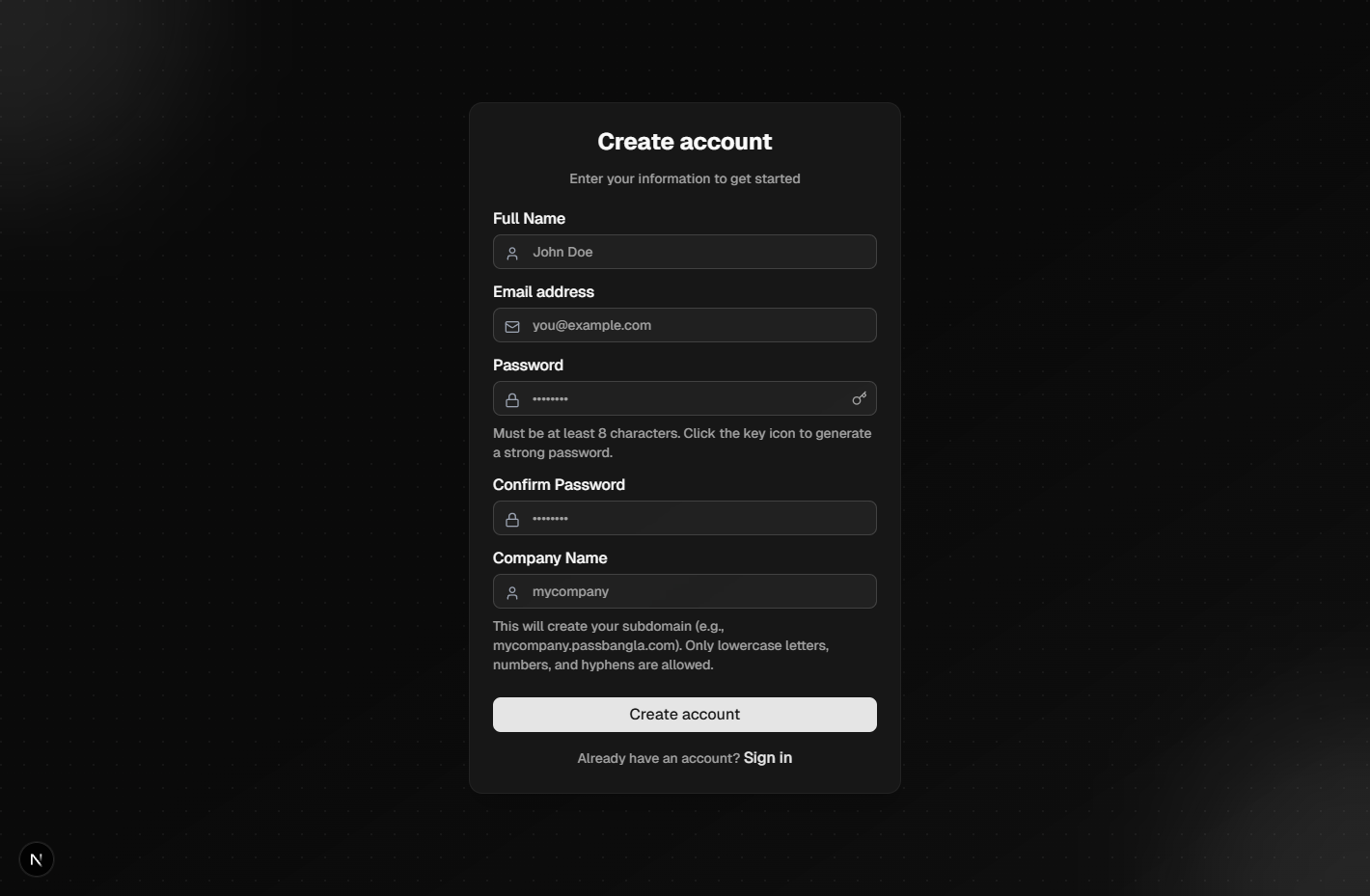
Visit the registration page and create your account with your email address. You'll receive a verification email to confirm your account.
Screenshot will appear here
/guide/getting-started-1.png
Set Up Your Master Password
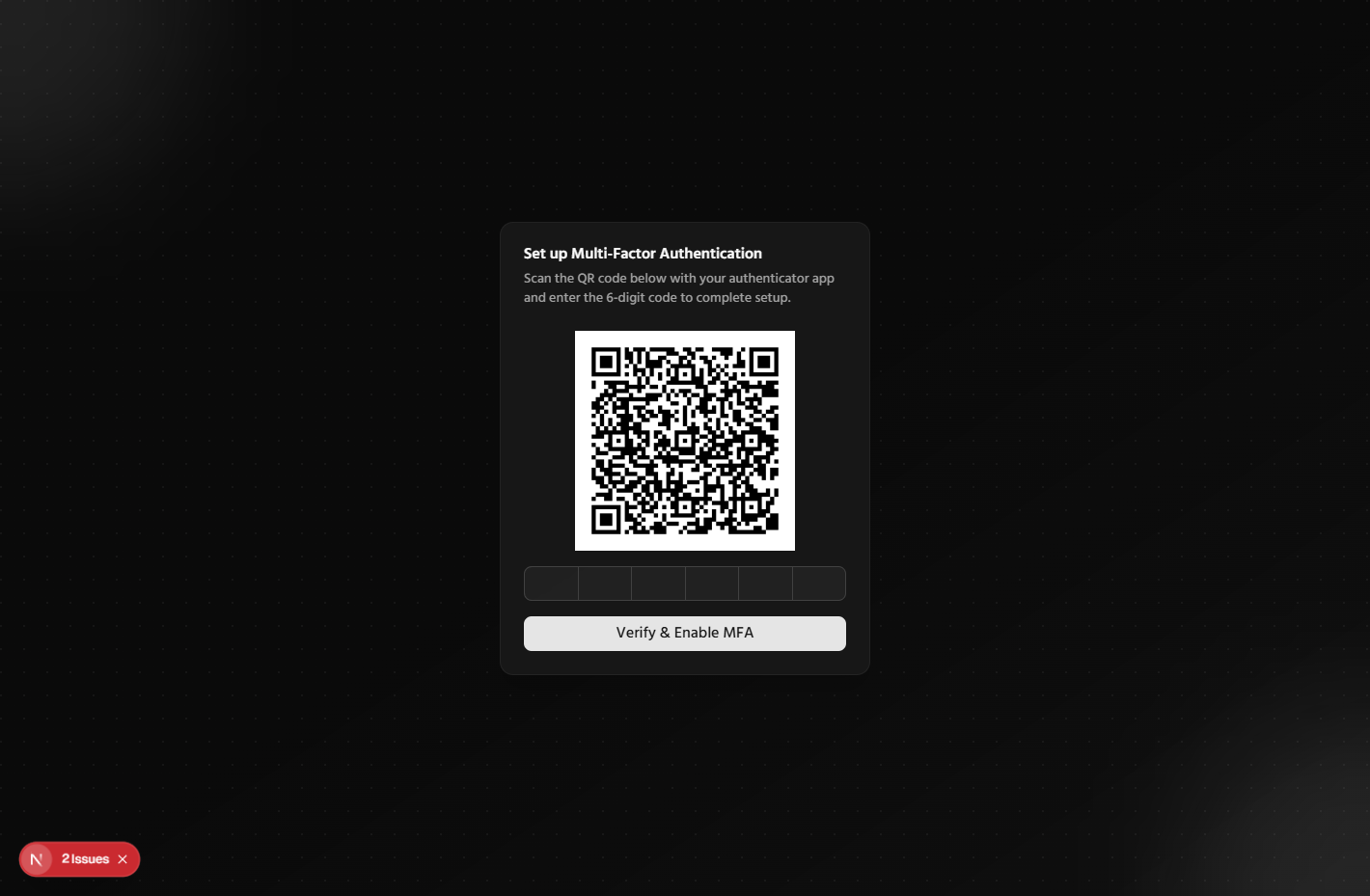
Choose a strong master password. This password encrypts all your data - make sure it's unique and secure. You can enable two-factor authentication for extra security.
Screenshot will appear here
/guide/getting-started-2.png
Explore the Dashboard
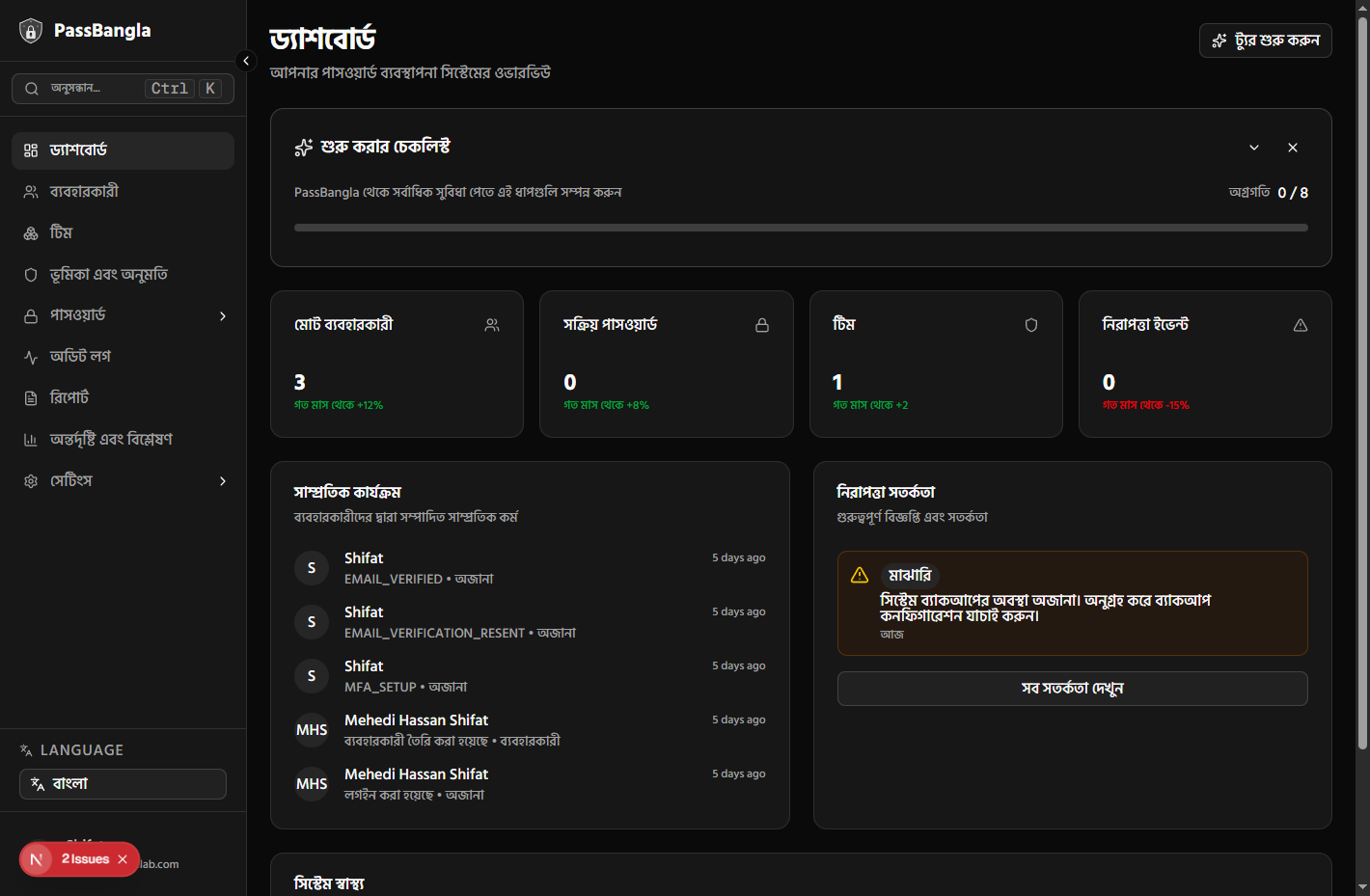
Once logged in, you'll see your dashboard with an overview of your passwords, security alerts, and recent activities. Use the sidebar to navigate between different sections.
Screenshot will appear here
/guide/getting-started-3.png
Managing Passwords
Learn how to add, edit, and organize your passwords
Add a New Password
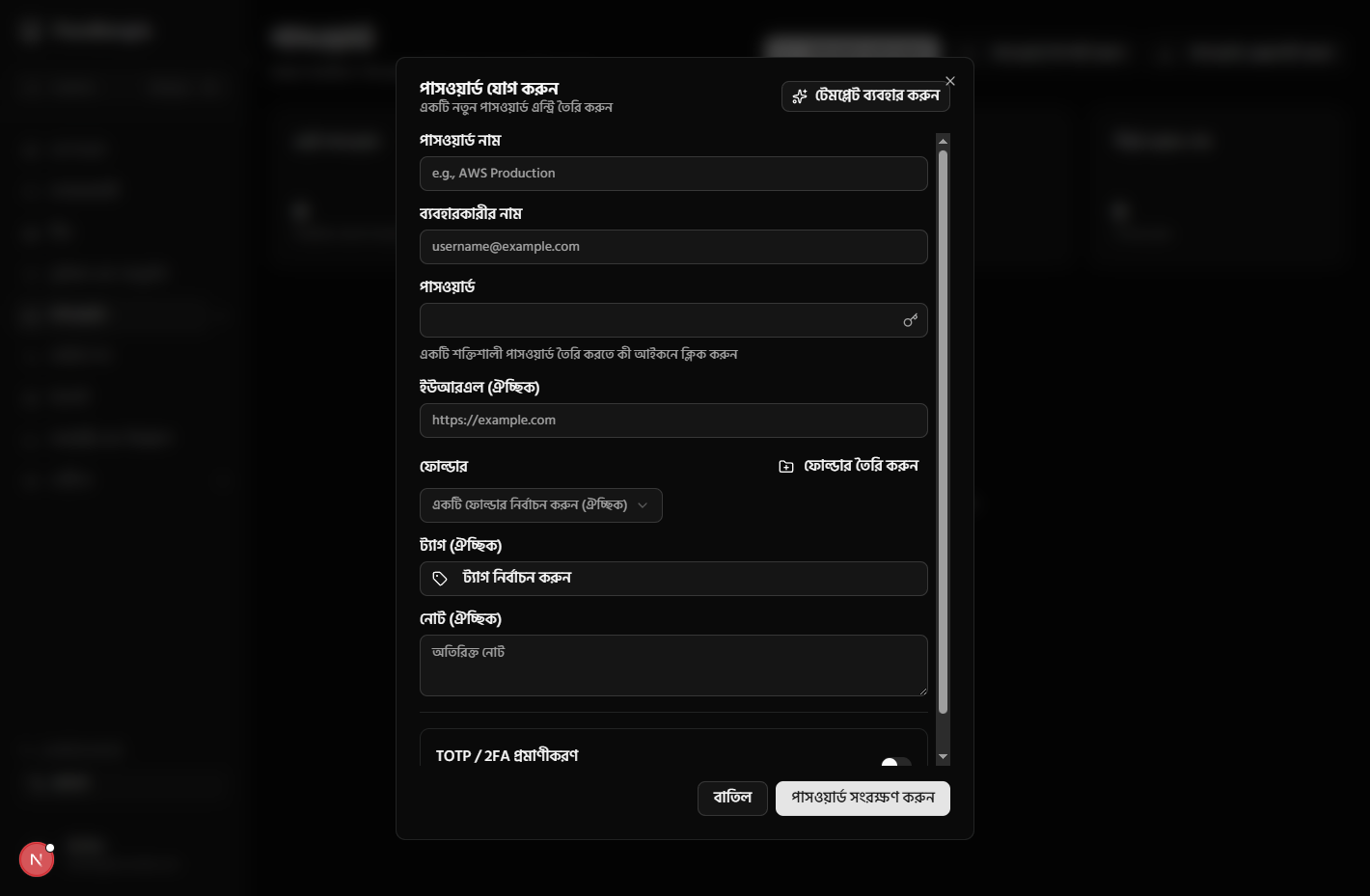
Click the 'Add Password' button in the passwords section. Fill in the password name, username, password, and URL. You can also add notes and tags for better organization.
Screenshot will appear here
/guide/passwords-1.png
View and Edit Passwords
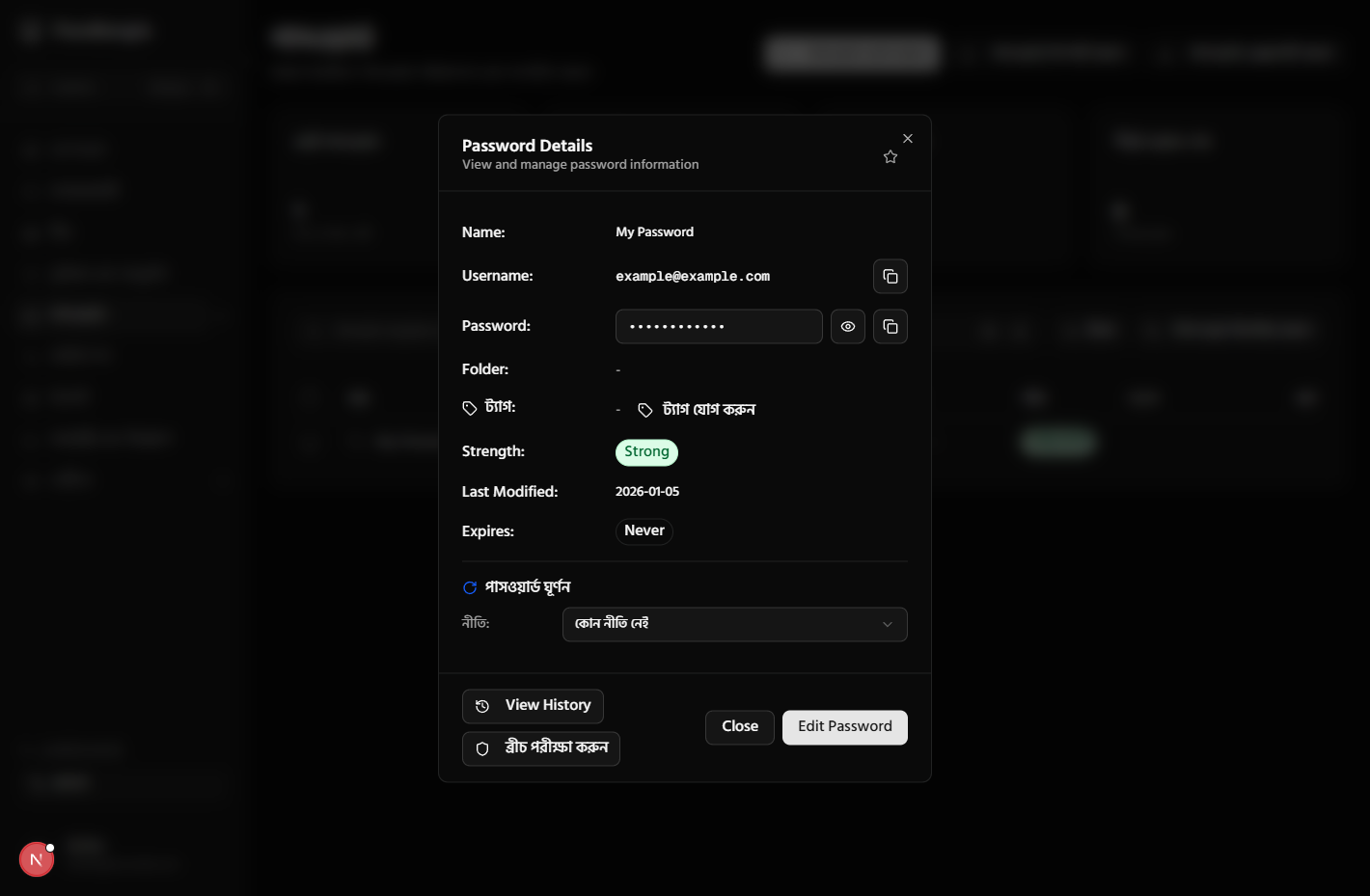
Click on any password in the list to view its details. You can edit the password, copy credentials, or view password history. Use the eye icon to reveal hidden passwords.
Screenshot will appear here
/guide/passwords-2.png
Organize with Tags and Folders
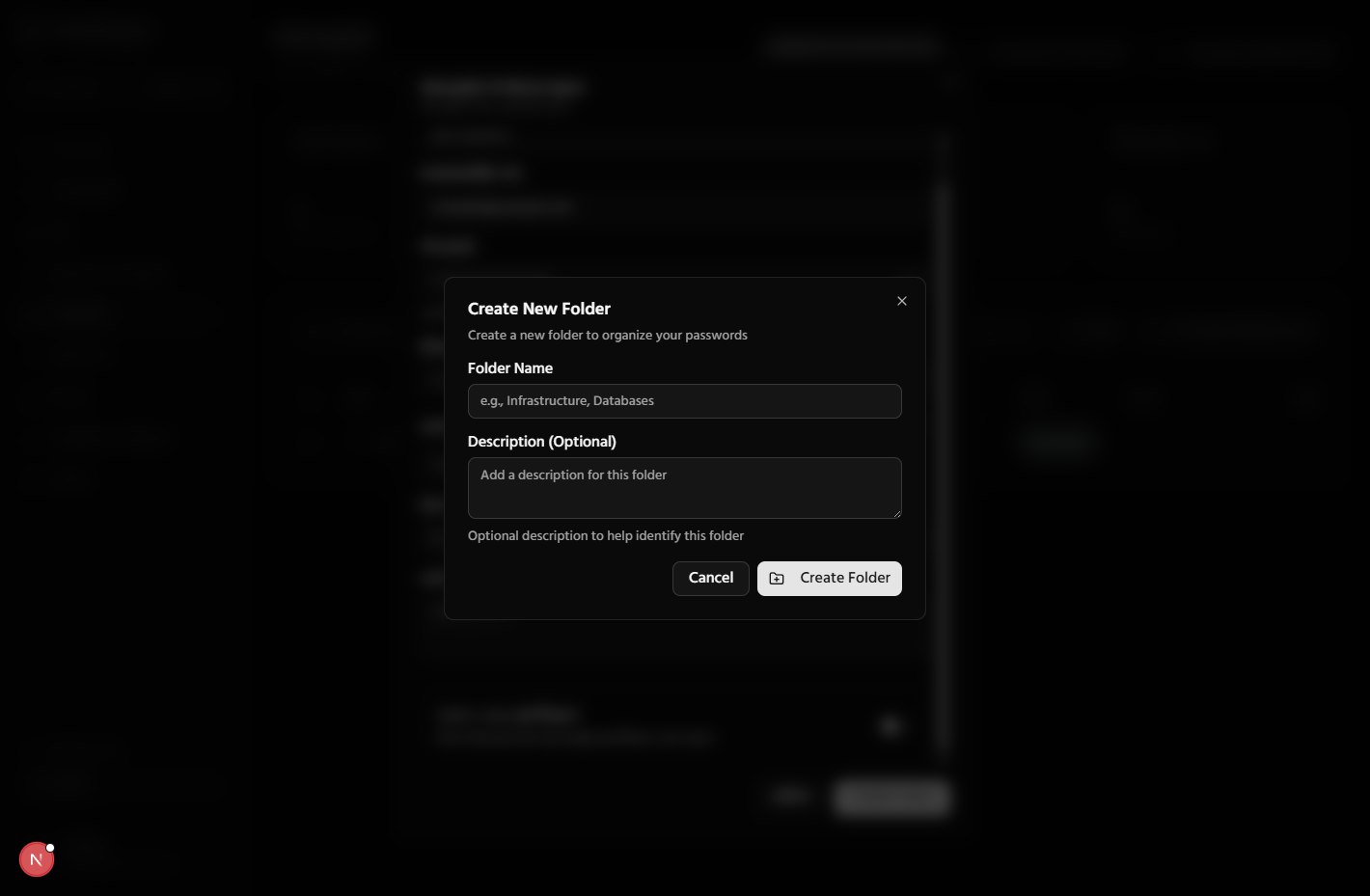
Create tags and folders to organize your passwords. Tags help you categorize passwords (e.g., 'Work', 'Personal', 'Social Media'), while folders provide a hierarchical structure.
Screenshot will appear here
/guide/passwords-3.png
Password Security Features
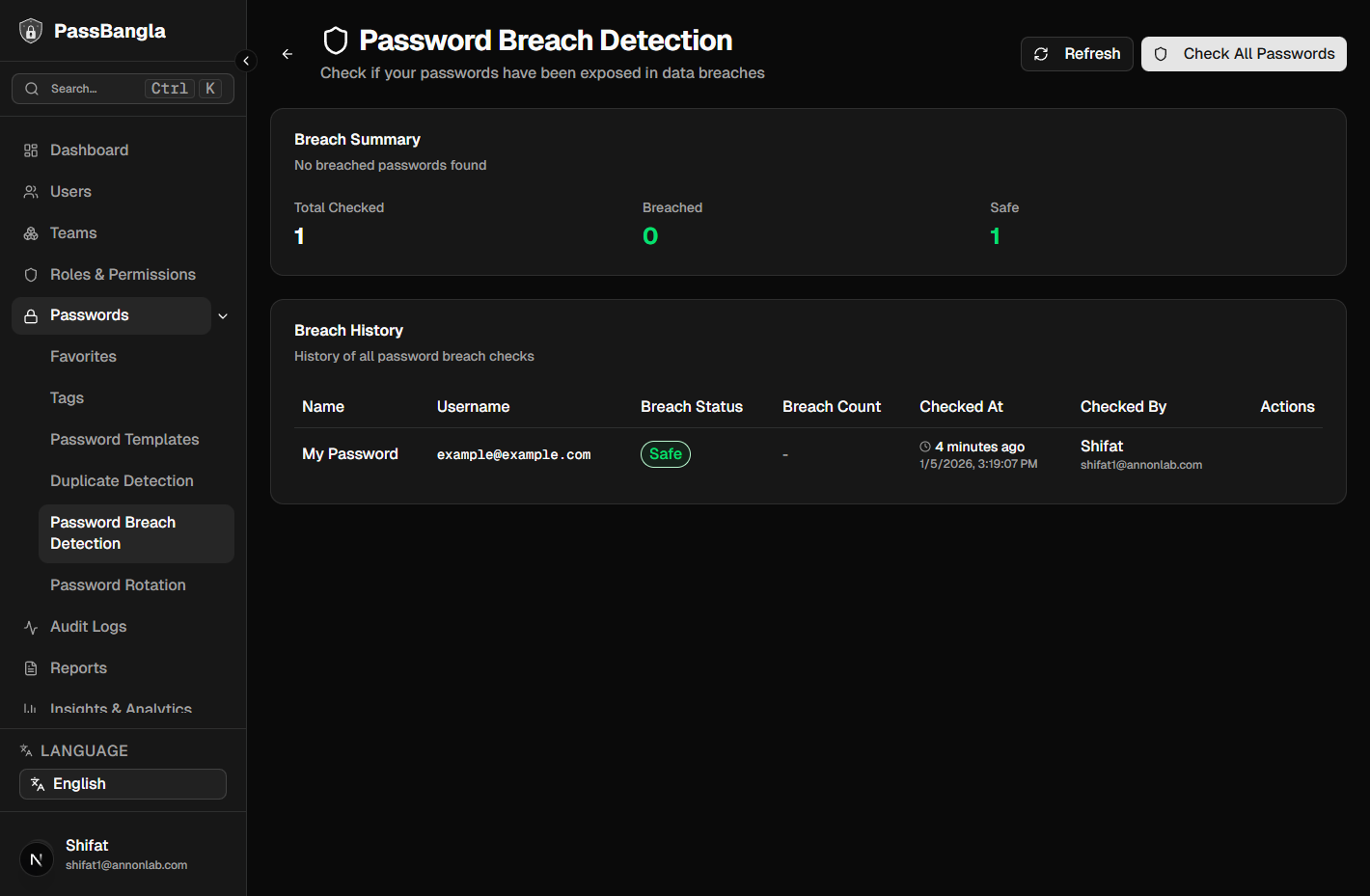
Use the security features to identify weak passwords, expiring passwords, and breached passwords. The system automatically checks for password breaches and alerts you.
Screenshot will appear here
/guide/passwords-4.png
Team Collaboration
Share passwords securely with your team members
Create a Team
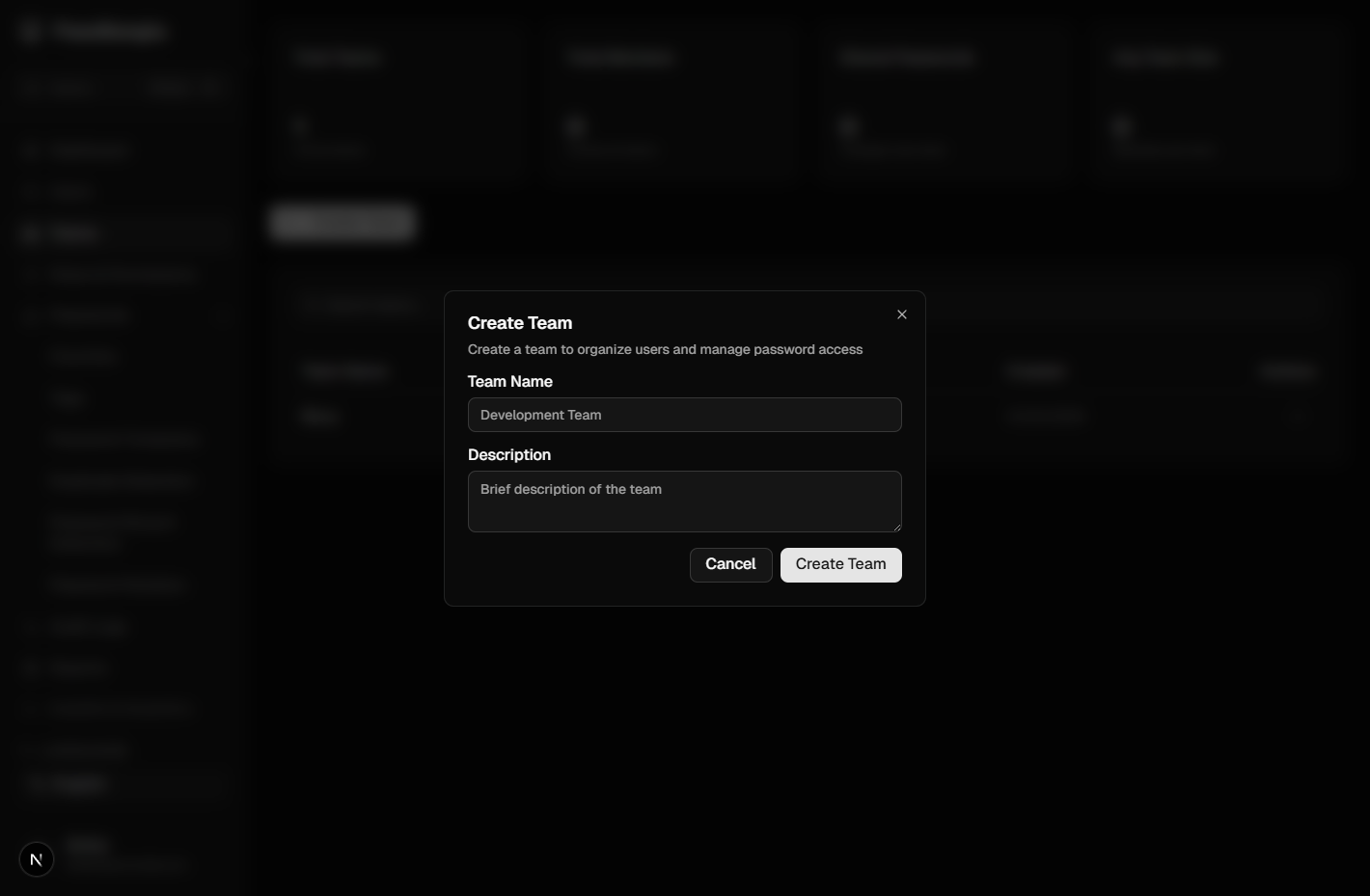
Go to the Teams section and click 'Create Team'. Enter a team name and description. You can set permissions and add team members.
Screenshot will appear here
/guide/teams-1.png
Share Passwords with Team
Select a password and click 'Share'. Choose the team or specific members to share with. You can set permissions like 'View Only' or 'Edit' for each member.
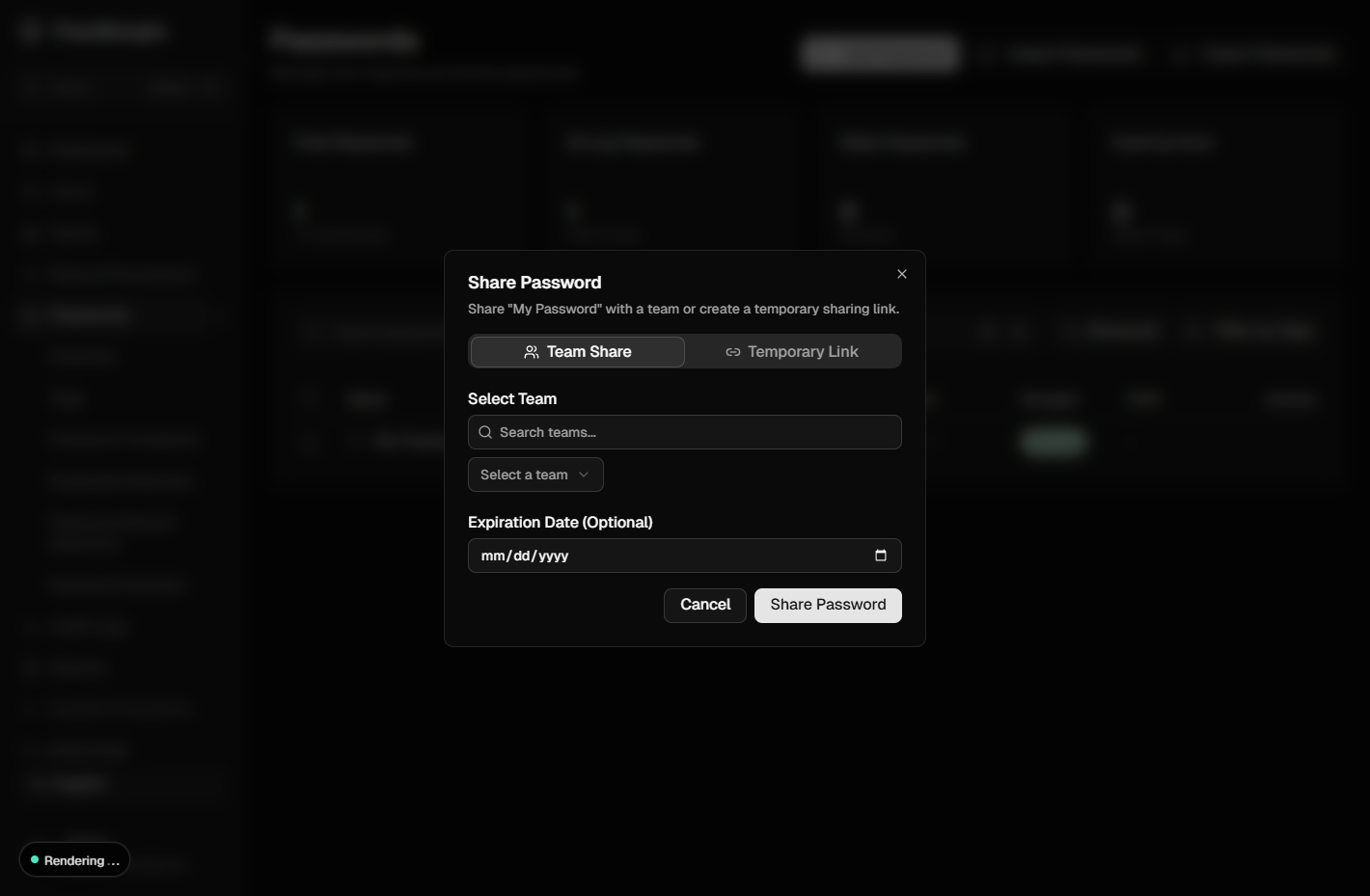
Screenshot will appear here
/guide/teams-2.png
Manage Team Members
Add or remove team members, change their permissions, and view team activity. All team actions are logged in the audit logs for security.
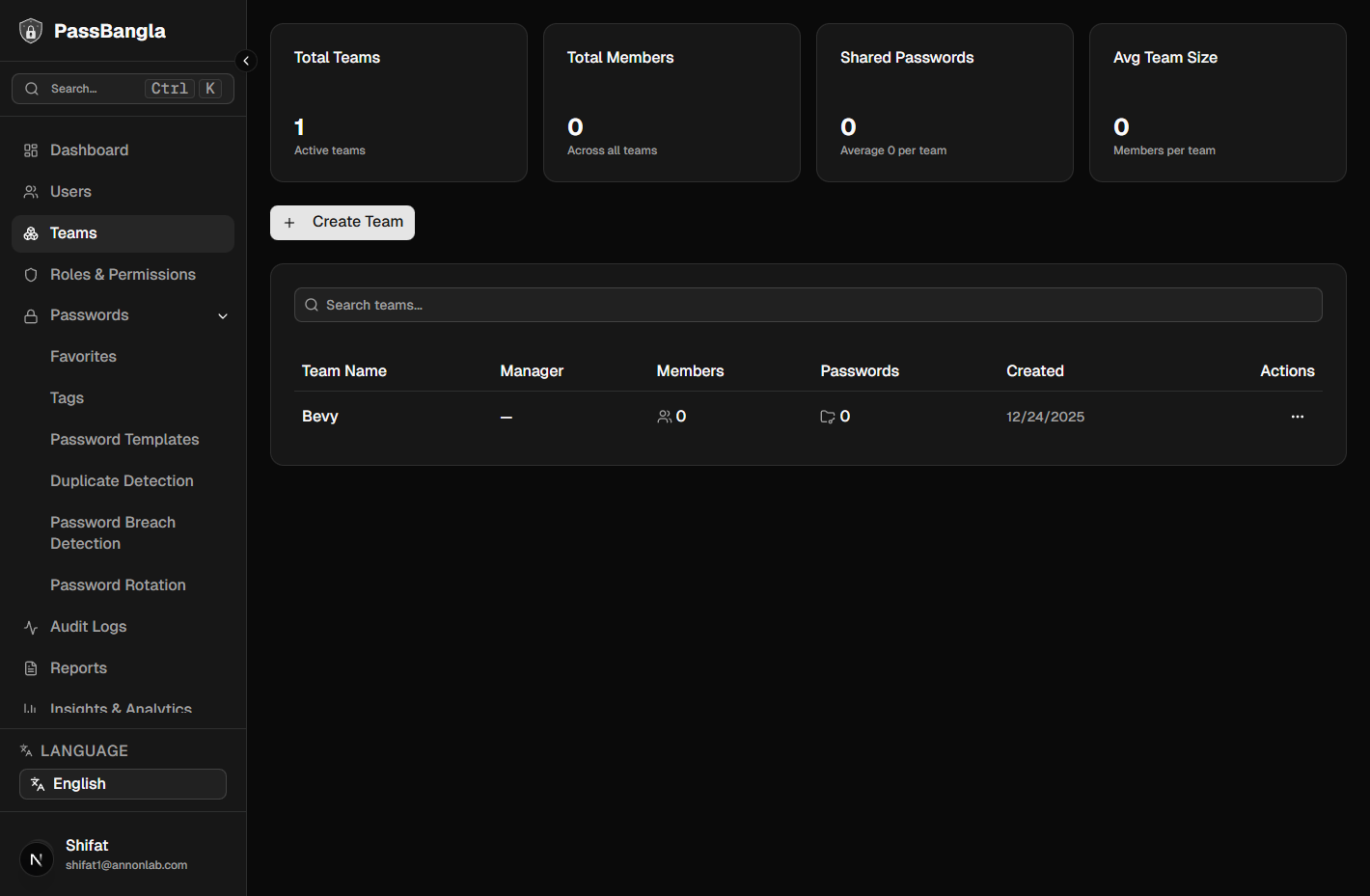
Screenshot will appear here
/guide/teams-3.png
Security Features
Protect your account with advanced security settings
Enable Two-Factor Authentication
Go to Settings > MFA and enable two-factor authentication. You can use TOTP apps like Google Authenticator or Authy. Scan the QR code to set up 2FA.
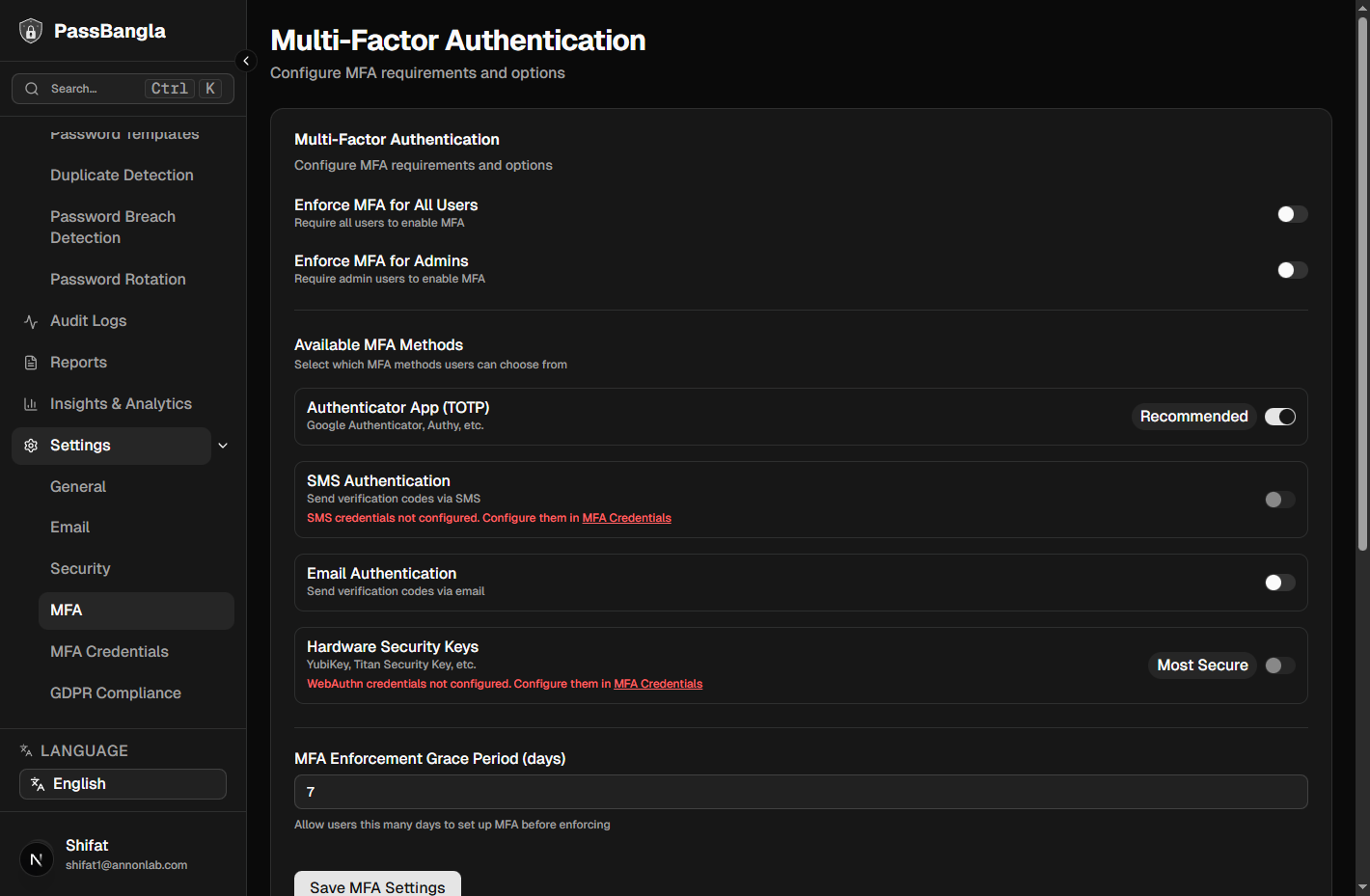
Screenshot will appear here
/guide/security-1.png
Configure Security Settings
In Settings > Security, configure password policies, session timeouts, and IP whitelisting. Set up breach detection alerts and password expiration reminders.
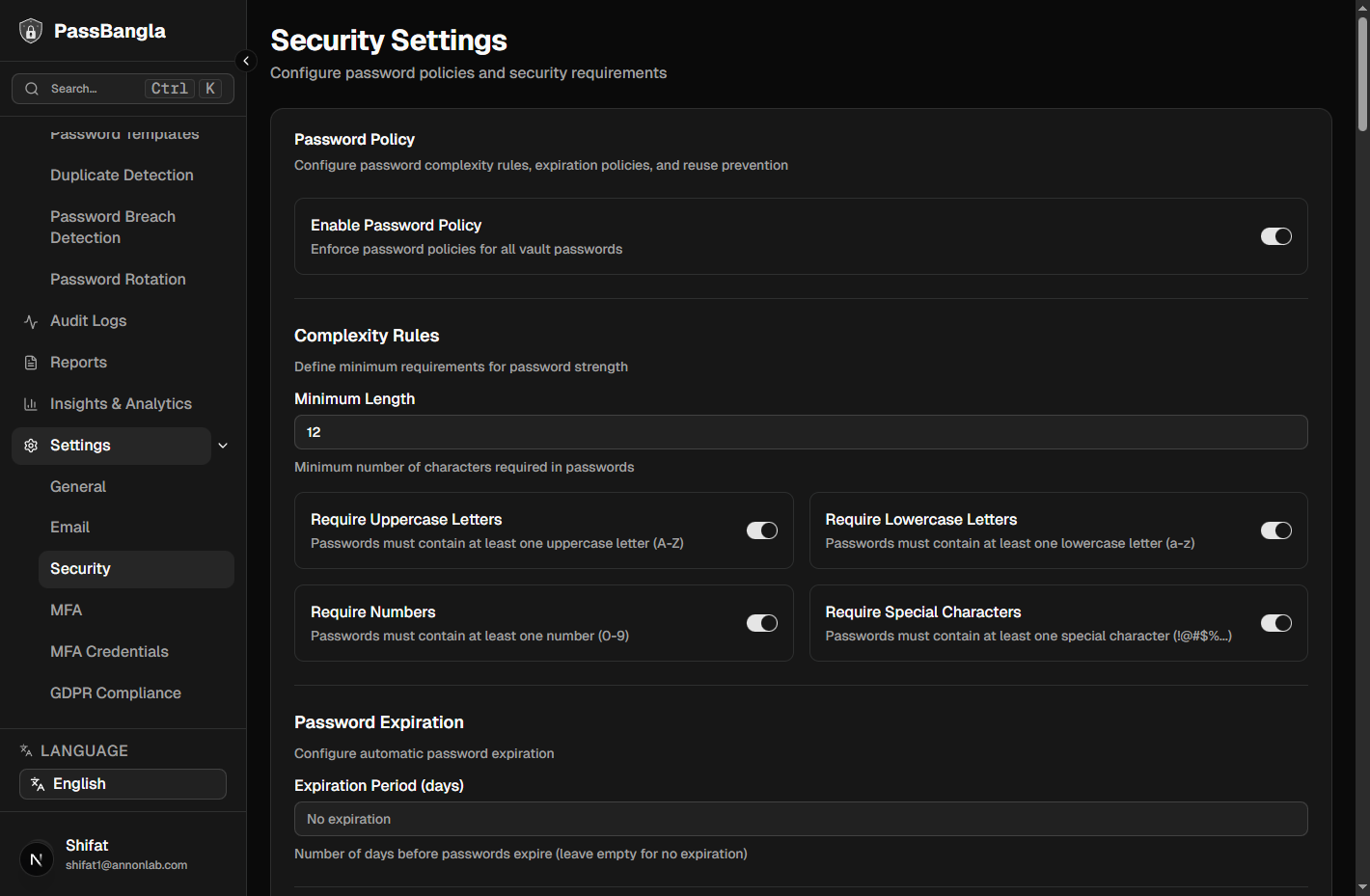
Screenshot will appear here
/guide/security-2.png
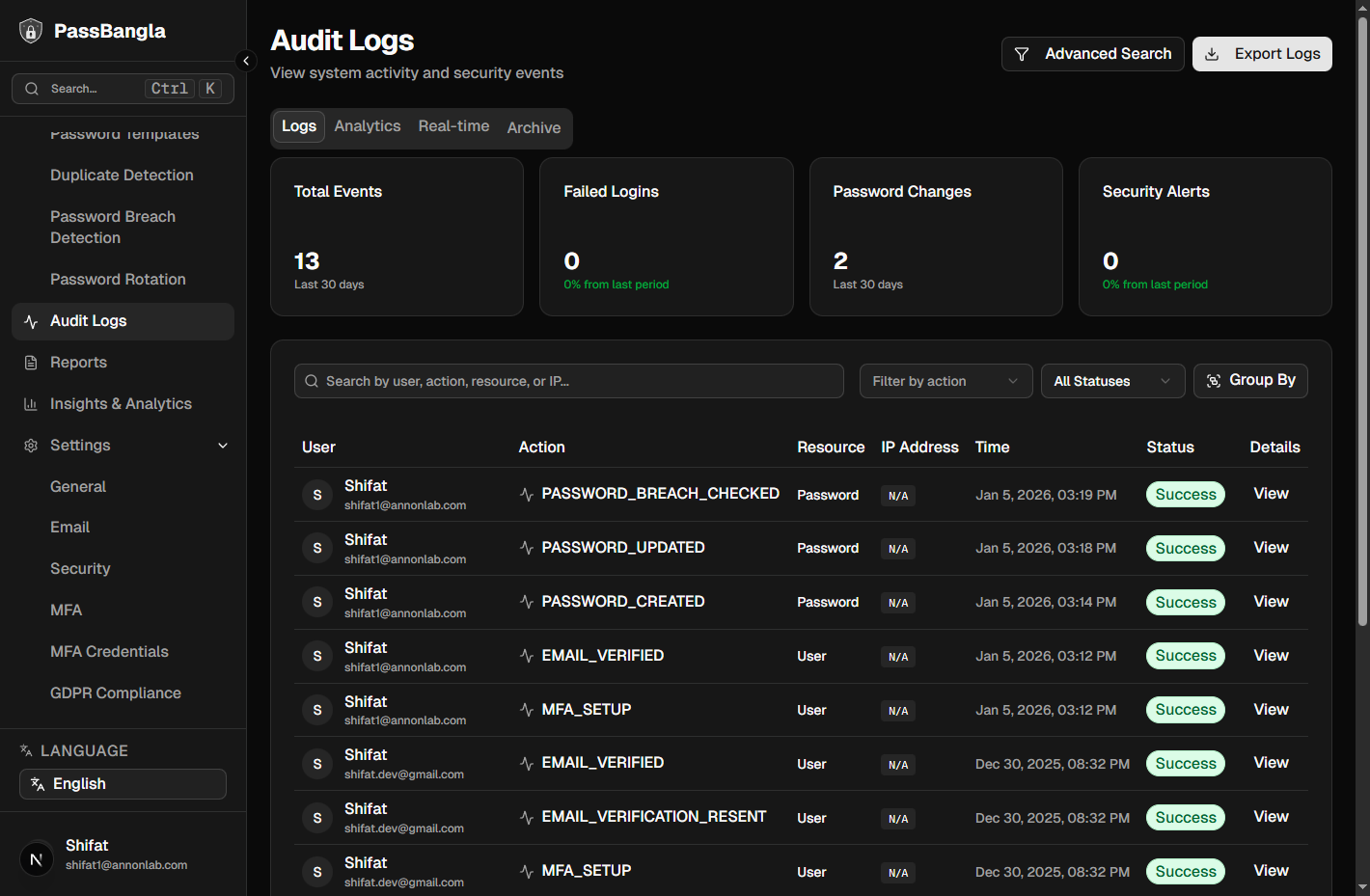
Review Audit Logs
Check the Audit Logs section to see all account activities, login attempts, and password changes. This helps you monitor account security and detect suspicious activity.
Screenshot will appear here
/guide/security-3.png
Search and Filter
Quickly find passwords using advanced search
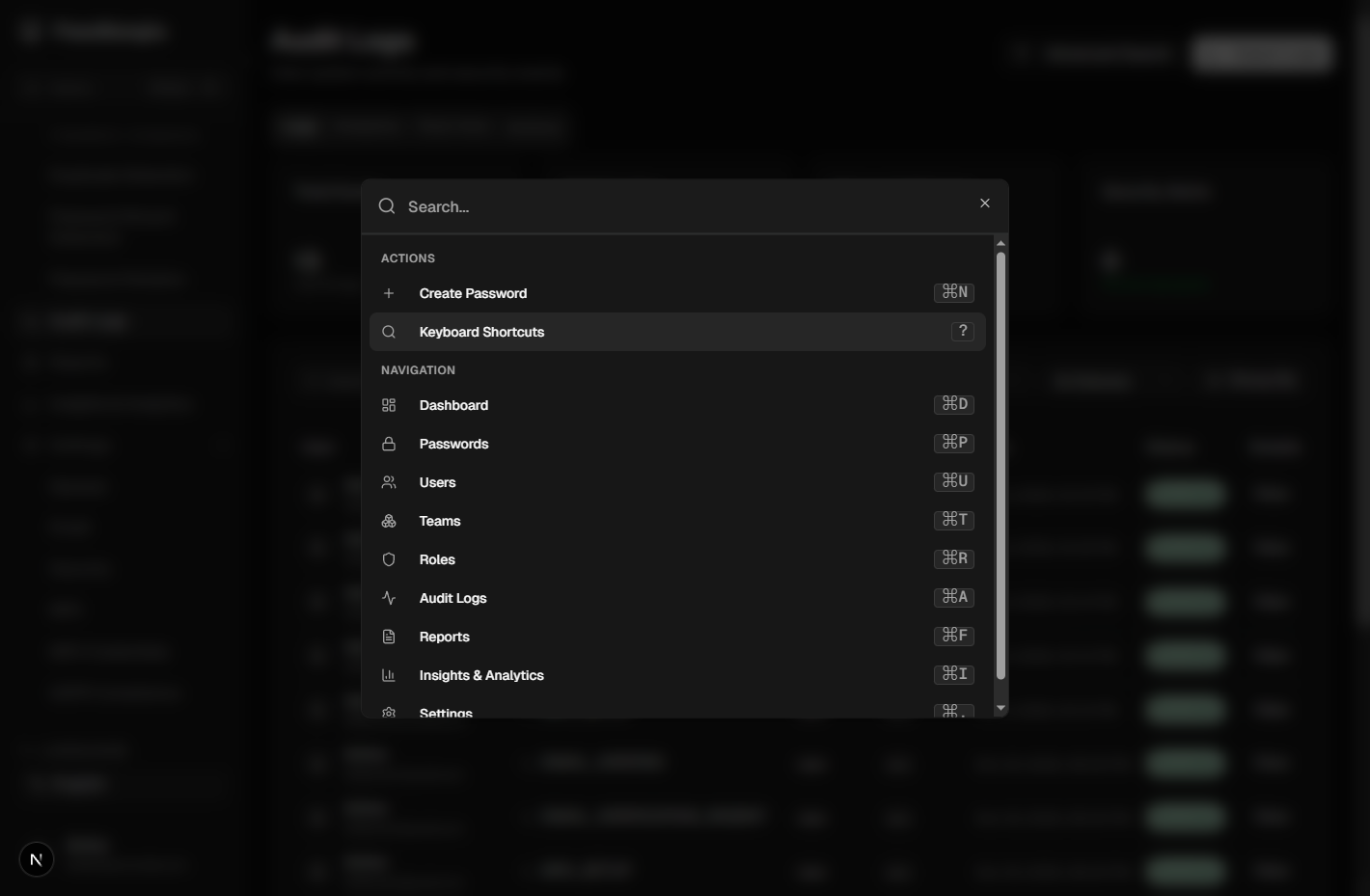
Basic Search
Use the search bar at the top of the passwords page to search by password name, username, URL, or notes. The search is instant and highlights matching results.
Screenshot will appear here
/guide/search-1.png
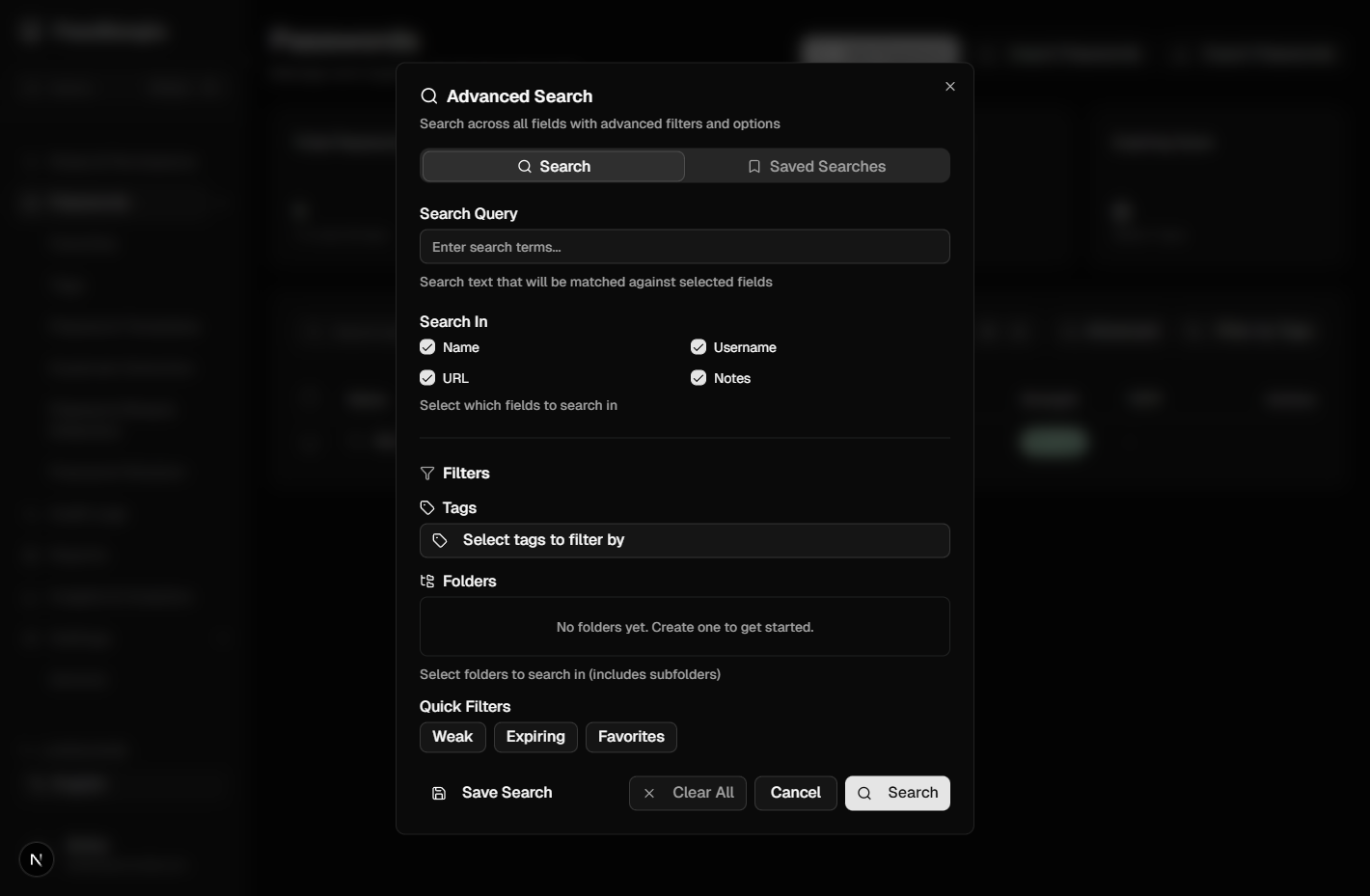
Advanced Filters
Use filters to find weak passwords, expiring passwords, favorites, or passwords with specific tags. You can combine multiple filters for precise results.
Screenshot will appear here
/guide/search-2.png
Import & Export
Import passwords from other managers or export your data
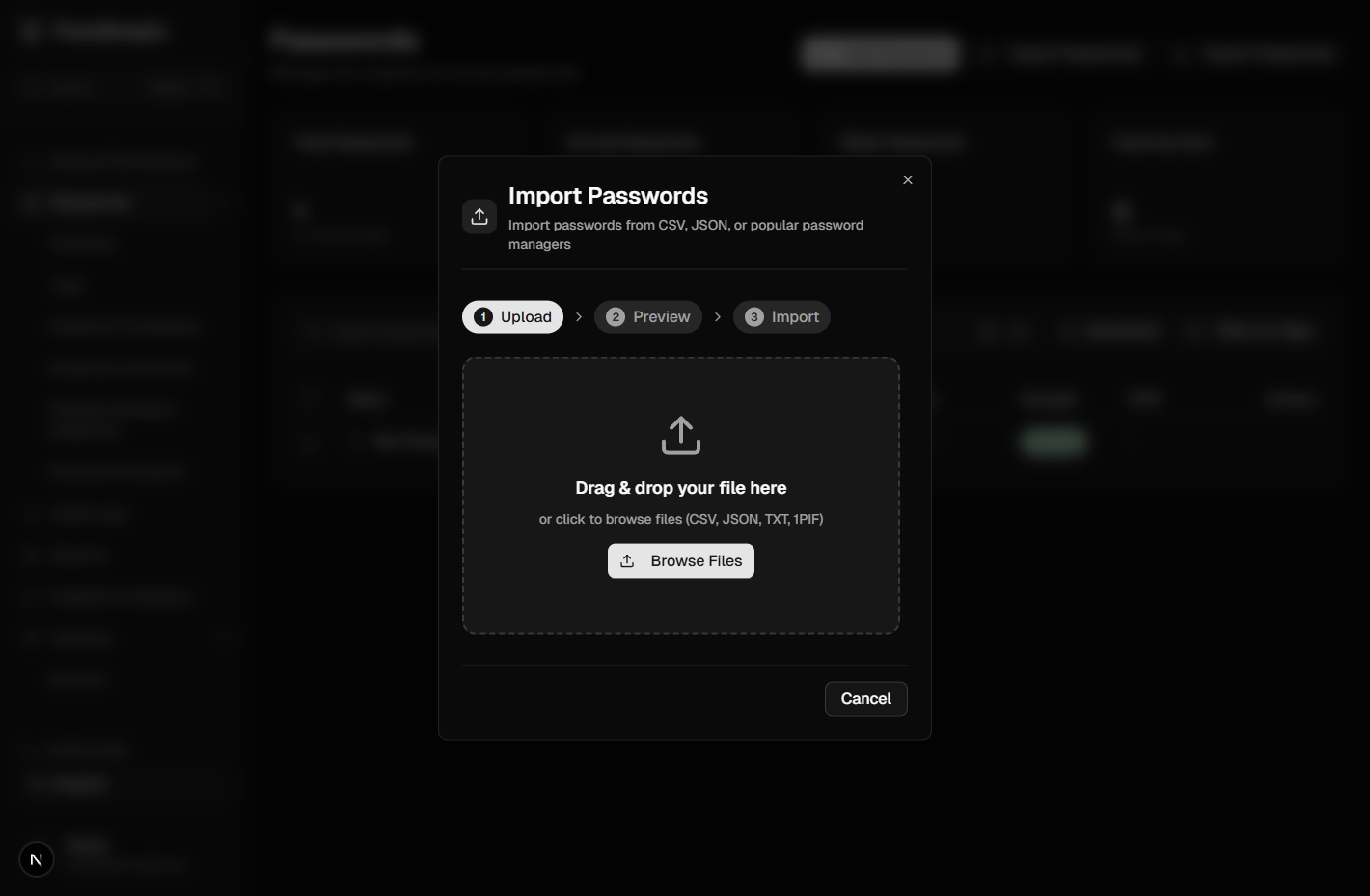
Import Passwords
Go to Passwords > Import and select your password manager format (CSV, JSON, or other supported formats). Follow the import wizard to map fields and import your passwords securely.
Screenshot will appear here
/guide/import-1.png
Export Passwords
Export your passwords for backup or migration. Go to Passwords > Export and choose your format. Your data is encrypted during export to maintain security.
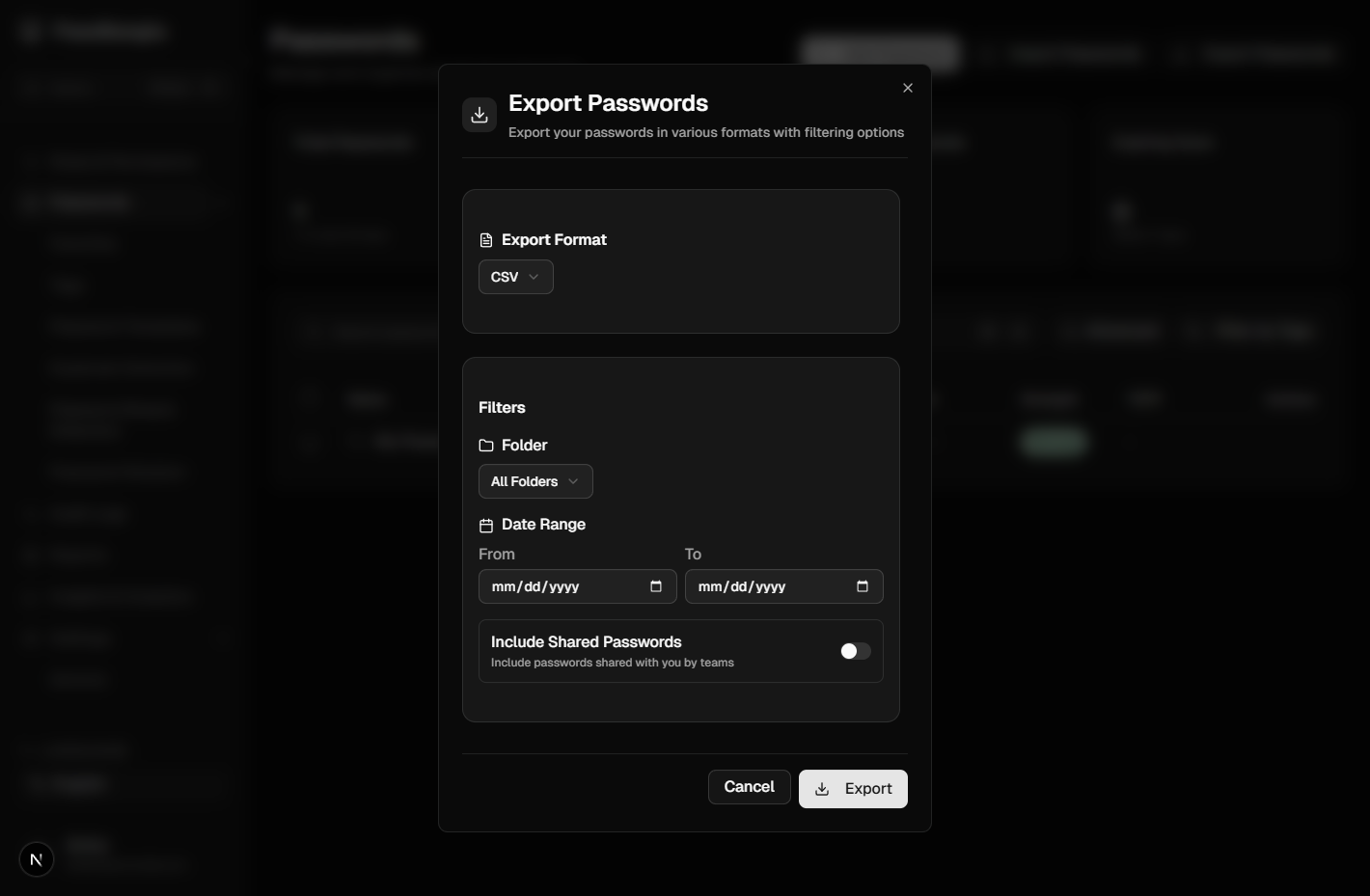
Screenshot will appear here
/guide/export-1.png
Additional Resources
Learn more about PassBangla's security and features